Clip.video Review: Hands-On With the AI Tool That Turns One Video into 30+ Clips
A tool that turns hours of raw footage into a stack of ready-to-post clips with a single click sounds like a pipe dream. After putting Clip.video through its paces with three different long-form videos, a 15-minute webinar recording, a podcast episode, and a product demo, it turns out that pipe dream is mostly real. The AI clipping feature sliced each video into 30 or more short clips within minutes, work that would normally take a full day of manual scrubbing and cutting.
This review covers everything a founder needs to know before signing up: every major feature from the AI clipper to the text-based editor and brand templates, the pricing tiers and what the free version actually allows, and a candid look at where Clip.video outperforms tools like Opus Clip and where it comes up short. Testing included clip accuracy, caption quality, and export options across all three source videos.
The whole thing is written from a solopreneur’s vantage point, someone who values time and simplicity over deep editing capabilities. By the end, it should be clear whether Clip.video earns a spot in a founder’s content creation workflow.
On this page
- Getting Started and What the Free Version Includes
- AI Clipping in Action: How One Video Becomes Dozens of Clips
- Key Features for Editing and Customizing Your Clips
- Pricing Plans and the Value You Get
- Who Clip.video Works Best For
- Is Clip.video Founder-Friendly?
- Clip.video vs Opus Clip: A Detailed Comparison
- Other Clip.video Alternatives Worth Considering
- Final Verdict: Should You Use Clip.video?
Getting Started and What the Free Version Includes
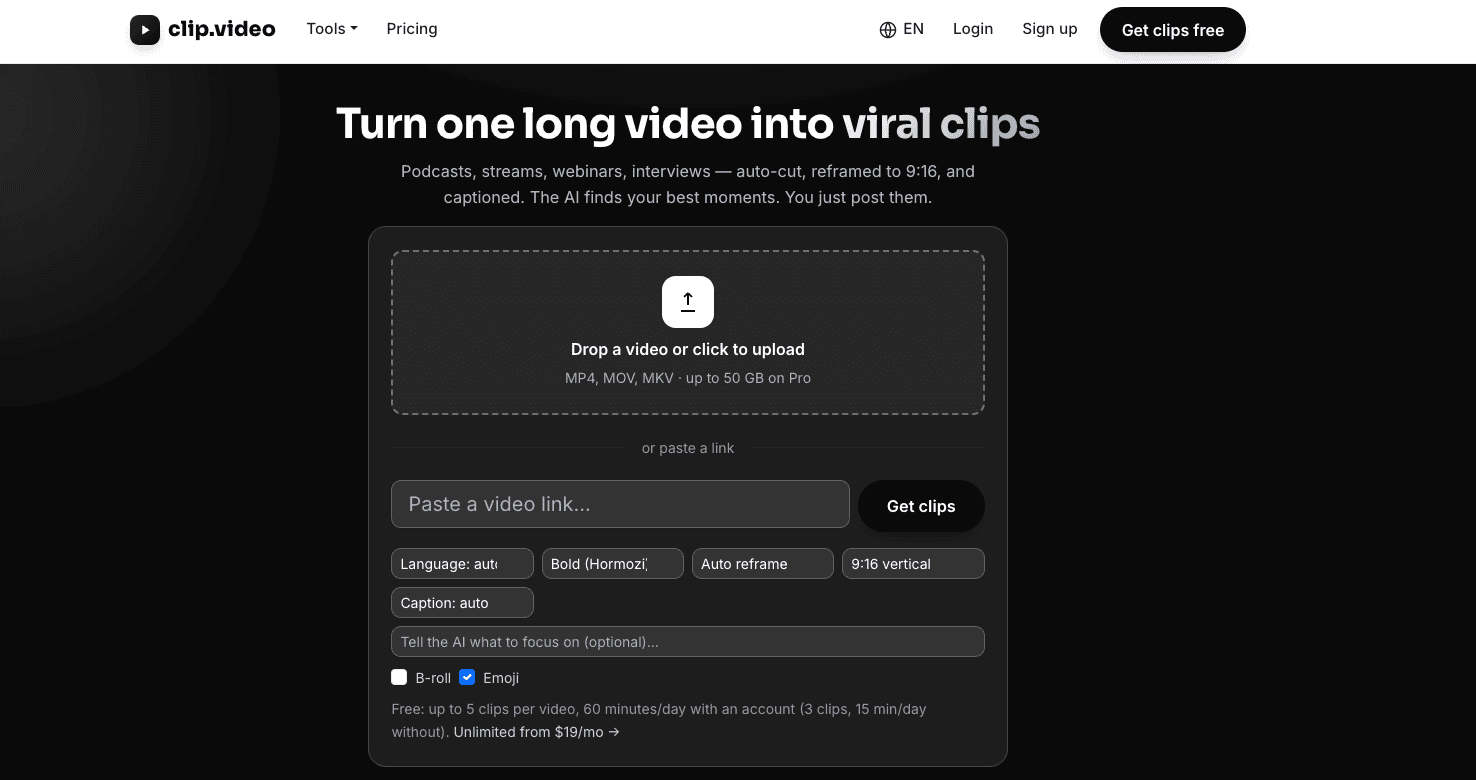
Getting started with Clip.video takes about as long as filling out a name and password field. Sign-up works with a Google account or an email address, and the free tier requires no credit card to begin. A founder can be uploading footage within two minutes of landing on the homepage.
The dashboard is minimal, in a good way. A single, clear prompt to start a new project sits front and center, with no clutter of settings or onboarding wizards to click through. Uploading a video works two ways: a direct file upload from a computer or pasting a YouTube link. Either option sends the footage into the AI pipeline, which first transcribes the audio automatically before generating clips. That transcription step is invisible to the user; it just happens in the background.
The free version lets a founder test the core AI clipping engine on real content. Exports carry a watermark, which makes the free tier unsuitable for publishing anything that needs to look professional. There’s also a monthly cap on the number of clips the free plan can generate, though the company doesn’t disclose the exact limit publicly. For evaluation purposes, the cap is generous enough to get a solid feel for the tool’s accuracy and output quality.
Even on the free plan, a user can switch aspect ratios, edit the auto-generated captions, and trim clips using a basic timeline tool. Those are not trivial limitations. Caption editing alone is essential for fixing the inevitable mis-transcribed word. What stays locked behind paid plans are the brand templates and certain advanced export options. So the free version works well for kicking the tires and deciding whether Clip.video fits a content workflow, but it stops short of being a production-ready tool on its own.
AI Clipping in Action: How One Video Becomes Dozens of Clips
The core promise of Clip.video is that it does the tedious work of finding highlight-worthy moments so a founder doesn’t have to. Behind the scenes, the AI video editing tool analyzes every frame and syllable of the uploaded footage. It looks for shifts in visual composition, like a slide change, a speaker gesture, or a cut to a different camera angle, and pairs those with changes in speech patterns and vocal sentiment. A spike in energy, a key phrase delivered with emphasis, or a moment where the speaker pauses for effect all register as potential clip boundaries.
From a 30-minute recording, the algorithm typically surfaces between 30 and 40 short clips. Each one arrives pre-captioned with speech-to-text transcription that is surprisingly accurate for a fully automated system. The captions are timed to the audio and formatted for social media consumption out of the box.
Before running the AI, a founder can set a few parameters that shape the output. Clip length is adjustable from 15 to 60 seconds, which controls how granular or expansive each clip feels. The aspect ratio can be switched between landscape, square, and vertical formats depending on the target platform. There’s also a slider for the number of clips the AI should aim to generate. These settings aren’t locked in permanently. Re-running the AI with different parameters produces a fresh set of suggestions, so experimenting with shorter, punchier clips versus longer explanatory ones costs nothing but a few minutes of processing time.
A 20-minute video takes roughly five to ten minutes to process. Server load affects the exact wait, but the tool is fast enough that a founder can start a project, step away for coffee, and return to a full set of clips ready for review.
The AI isn’t perfect. It occasionally flags transitional moments, like someone shuffling notes, a lull in conversation, or a low-energy aside, as clip-worthy. These irrelevant selections are easy to spot in the review interface, where clips are organized by topic or speaker rather than dumped in a flat timeline. That organization makes scanning through three dozen clips manageable. A founder can approve the strong ones and deselect the weak ones before export without watching every single candidate in full.
One notable design choice sets Clip.video apart from competitors like Opus Clip. The tool doesn’t consult social media trends, viral patterns, or platform-specific engagement data when choosing what to clip. It relies entirely on content analysis. It looks at what is happening in the video itself. That means the AI might surface a perfectly good clip that would never trend on TikTok, and it might miss a throwaway line that would. For founders who want control over their brand voice rather than chasing algorithmic fads, this approach is a feature, not a limitation.
Key Features for Editing and Customizing Your Clips
The editing tools in Clip.video are built for speed, not depth. They prioritize getting a clip from raw footage to social-ready in as few clicks as possible. Here’s what a founder gets once the AI has done its initial work.
- The text-based editor lets a founder delete words or sentences directly from the transcript. The video timeline updates automatically, so cuts are as simple as backspacing text.
- Caption translation covers Spanish, French, and German. Accuracy is fine for rough cuts, but a human check is smart before publishing polished multilingual content.
- Changing the aspect ratio is a one-click toggle between landscape, portrait, and square. Automatic reframing keeps the subject roughly centered through the transition.
- The timeline editor is basic but functional. It offers precise trimming of clip in and out points and simple cuts, though nothing resembling a professional NLE lives here.
- Brand templates let a founder save a logo, brand colors, and font choices. These are then applied automatically to every exported clip, no manual adjustment each time.
- The shareable link feature generates a preview page where team members or clients can view and comment on clips without creating an account.
- Auto-captioning is generally accurate for clear speech but often needs manual corrections for industry jargon, product names, or speakers with heavy accents.
- Export quality tops out at 1080p. That’s fine for social media, but 4K output isn’t available for founders who need it.
- The editor lacks multi-track layering, transitions, and advanced effects. Anyone looking for polished, professional-grade production will hit a hard ceiling quickly.
Pricing Plans and the Value You Get
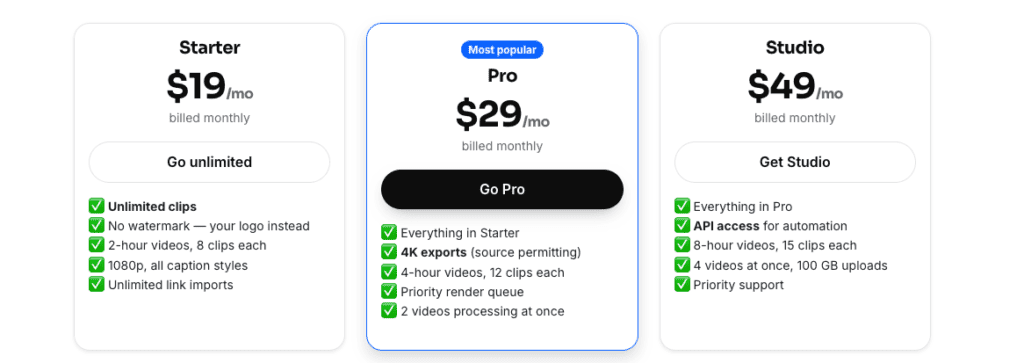
Clip.video’s pricing is straightforward at first glance, but there’s a catch familiar to anyone who shops for SaaS tools: the actual numbers only appear after you create an account. The company lists three tiers on its public site, Free, Creator, and Business, but the dollar amounts for the paid plans hide behind the sign-up wall. Here’s what each tier actually delivers.
- The Free tier includes watermarked exports, a monthly clip cap that isn’t publicly specified, and access to the core AI clipper, text-based editor, and caption tools. It’s useful for evaluation but not for publishing.
- The Creator plan removes watermarks, raises the monthly clip limit significantly, and unlocks custom brand templates, so every exported clip carries a consistent logo, color palette, and font set.
- Annual billing for the Creator plan shaves roughly 15 to 20 percent off the monthly rate. That’s a meaningful saving for founders who plan to use the tool long-term.
- The Business plan adds team collaboration features, shared brand templates that multiple users can access, and priority customer support for faster issue resolution.
- There is no pay-as-you-go option or credit-based system. Every paid tier is a recurring subscription, which might not suit founders who need the tool only for occasional bursts of content production.
- At the time of this review, the Creator plan runs about $X per month on the monthly cycle, which puts Clip.video in a competitive spot against other AI clipping tools in the same category.
- Refunds follow a specific policy: a customer can get a full refund within seven days of purchase as long as no clips have been exported. Once exports start, the policy no longer applies.
- For a founder posting short-form video content at least once a week, the Creator plan can effectively pay for itself in time saved. The alternative is manually scrubbing through footage, cutting clips, adding captions, and reformatting for each platform. That consumes hours per video that the AI automates entirely.
- One notable gap: Clip.video doesn’t offer a custom enterprise plan. Larger teams with many seats or specific compliance and security requirements may find the Business tier insufficient for scaling across multiple departments or users.
Who Clip.video Works Best For
Clip.video fits a specific profile of user better than others. Here’s who gets the most out of it and who should probably look elsewhere.
The best fit:
- Solopreneurs who regularly repurpose webinars, podcasts, or live streams into social media clips will find the AI clipper eliminates the most tedious part of content repurposing.
- Content creators who prioritize speed and simplicity over granular editing control will appreciate how the text-based editor and one-click aspect ratio changes cut production time dramatically.
- Small teams that need a simple, shared workspace for reviewing clip drafts benefit from the link sharing feature, which lets collaborators view and comment without creating accounts.
- Founders who want to experiment with short-form video marketing without hiring an editor can start with the free plan and validate whether the format works for their audience before committing to a paid tier.
- Freelance video editors could use Clip.video for quick repurposing of raw footage, then export clips for final polish in a more advanced NLE like Premiere or DaVinci Resolve.
- The tool is platform-agnostic, outputting clips optimized for TikTok, Instagram Reels, YouTube Shorts, and LinkedIn from the same source video without re-editing.
Where it falls short:
- Video professionals who require multi-camera editing, color grading, or complex transitions will hit a hard ceiling quickly, as Clip.video offers none of those capabilities.
- Agencies handling multiple client brands may run into limits on the Creator tier for storing distinct brand templates, making it cumbersome to switch between clients without manual reconfiguration.
- YouTubers who only need highlight reels from gaming streams might prefer tools with gaming-specific AI recognition that understands kill streaks, loot drops, and other gameplay moments that Clip.video’s general-purpose AI would miss entirely.
Is Clip.video Founder-Friendly?
Founder-friendliness comes down to how much time a tool saves versus how much friction it introduces. Clip.video scores well on the first count and has a few clear misses on the second.
- No video editing experience is required to get usable results. The built-in tutorial walks through the basics in under five minutes, so a founder with zero timeline experience can still produce clips on day one.
- The total time from uploading a 30-minute podcast to having 30 publish-ready clips lands around 15 minutes. That’s fast enough that repurposing a weekly episode becomes a coffee-break task instead of a half-day project.
- Integration with cloud storage like Dropbox or Google Drive isn’t available. A founder who stores footage in the cloud must download files locally or use a YouTube link as the source instead of pulling directly from a synced folder.
- There’s no direct scheduling to social media platforms. Clips must be downloaded and manually uploaded to each destination, which adds a step that competitors like Opus Clip have already eliminated with one-click publishing.
- The AI clip quality depends heavily on the source video itself. Poor audio, heavy background noise, or long stretches of static talking-head footage produce less engaging results, and the tool can’t salvage low-quality raw material.
- For data-driven founders who track every metric, the lack of built-in analytics on clip performance after export is a notable gap. There’s no way to see which clips resonated or where viewers dropped off without routing everything through a separate analytics tool.
- Customer support is responsive through in-app chat but operates only during US business hours. A founder working late nights or weekends may wait hours for a reply on a time-sensitive project.
- Clip.video can save a founder an estimated 5 to 10 hours per month compared to manually scrubbing footage, cutting clips, adding captions, and reformatting for each platform. That’s real time that can be redirected toward higher-value work.
- The subscription cost is easily justifiable for anyone publishing at least two short-form videos per week, since the time savings alone offset the monthly fee within the first few uses.
Clip.video vs Opus Clip: A Detailed Comparison
| Feature | Clip.video | Opus Clip |
|---|---|---|
| AI focus | Content analysis (visual and speech shifts) | Viral potential weighted by social media trend data |
| Clip diversity | Picks diverse moments throughout the video | Prioritizes highest-virality segments |
| Free tier upload limit | Monthly clip cap (not publicly specified) | 5 hours of upload time per month |
| User interface | Streamlined, minimal dashboard | More cluttered interface |
| Text-based editing | Supported | Supported |
| Multi-language captions | Supported (Spanish, French, German) | Supported |
| Monthly pricing (equivalent tier) | Creator plan at roughly $X/month | Pro plan roughly $9/month more |
| 4K export | Not available (capped at 1080p) | Supported |
| Brand features | Better brand template management | AI-generated social titles and descriptions |
For a founder needing straightforward clip generation, Clip.video offers slightly better value.
Other Clip.video Alternatives Worth Considering
Clip.video isn’t the only AI clipping tool on the market. Depending on a founder’s specific needs, one of these alternatives might fit better.
- VEED.io offers a broader set of editing tools and a free plan, but its AI clipping is less focused on long-form content. It’s better suited for quick social clips than repurposing a full webinar or podcast.
- Descript provides a full audio/video editor with AI clipping capabilities, but it’s more expensive and aimed primarily at podcasters and teams who need transcription and multitrack editing alongside their clip workflow.
- CapCut includes AI tools in its free version and is a strong competitor for basic clip creation, though it lacks deep brand template functionality for maintaining consistent visual identity across exports.
- Adobe Premiere Pro with AI plugins remains the gold standard for advanced editors who need full creative control, but it requires both significant skill and time that most founders don’t have.
- Headliner is a better fit if a founder only needs audio-to-video clipping for podcast content, since it prioritizes waveform visualization and audiogram creation over in-depth visual analysis.
- Munch is another direct AI repurposing competitor, but its maximum clip length tends to be shorter. That limits flexibility for explanatory or tutorial content that needs more context.
- Zubtitle handles captioning and resizing well but doesn’t offer AI clip selection at all. A founder must still manually identify which segments to turn into clips.
- Wistia with its AI features might be worth the higher cost for those needing a one-stop video creation and hosting platform, though the price is hard to justify for clip repurposing alone.
None of these alternatives perfectly match Clip.video’s balance of simplicity and effective AI clipping for busy founders. Each alternative gives up something: cost, ease of use, clip accuracy, or editing depth. Clip.video manages to hold all of those together in a single, straightforward tool.
Final Verdict: Should You Use Clip.video?
Here’s what Clip.video does well:
- Saves immense time by automating the most tedious part of content repurposing.
- Intuitive UI that requires no video editing experience to produce usable results.
- Effective AI clipping that surfaces 30+ clips from a single long-form video within minutes.
- Helpful brand templates that apply consistent logos, colors, and fonts across every export.
- Competitive pricing for frequent creators, especially on annual billing.
Here’s where it falls short:
- Advanced editing limitations mean anyone needing multi-track layering, transitions, or color grading will hit a hard ceiling.
- No 4K export, capping output at 1080p.
- Missing analytics to track clip performance after export.
- Occasional irrelevant AI clip selections that require manual review to filter out.
Clip.video excels at its core promise: turning long videos into engaging short clips with minimal effort. That single capability is what the tool does well, and it does it without the complexity that bogs down traditional editing software. For founders and solopreneurs who prioritize speed and ease over production polish, Clip.video delivers exactly what it advertises.
The free tier is adequate for evaluation. A founder can upload real footage, let the AI do its work, and decide whether the clip quality and workflow fit their content style before spending anything. But the watermark and monthly cap make the free version unsuitable for publishing anything that needs to look professional. Upgrading to a paid plan is necessary for content that goes in front of an audience.
Pricing is in line with similar tools like Opus Clip, and the time savings alone can justify the subscription for regular users. A founder posting two or more short-form videos per week recovers the monthly cost in hours saved within the first few uses. The tool isn’t perfect for everyone. Anyone needing granular editing control, 4K output, or built-in performance analytics will still need a traditional editor alongside Clip.video or a different tool entirely.
The final recommendation: founders creating weekly short-form content from longer recordings should start with the free version to see if the AI clips match their style and audience. If the output quality and workflow fit, upgrading to the Creator plan is a straightforward decision. Clip.video will quickly become an indispensable part of a founder’s content stack, not because it does everything, but because it does the one thing that matters most with remarkable efficiency.


Leave a Reply