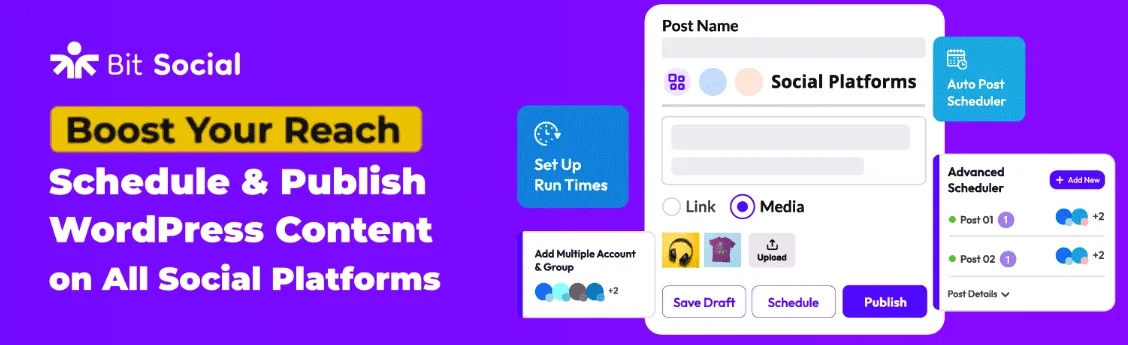
Bit Social is a WordPress plugin that auto-shares new blog posts and WooCommerce products to multiple social networks right from the WordPress dashboard. It suits bloggers who want their posts to spread with less work, WooCommerce owners who need to promote new items fast, and solo operators who run several accounts from one place. More than 6,000 active users rely on it, and the WordPress.org rating sits at 4.5 stars. Recent updates keep it in step with current WordPress versions, which signals steady upkeep and trust from users.
APIs change, and auto-posting breaks sometimes. Bit Social helps with that by showing clear activity logs so users spot issues fast instead of guessing what went wrong. The time savings matter most. Sharing one update across five networks by hand takes about 15 minutes. With Bit Social set once, it takes under two minutes per update.
How Bit Social automates posting, scheduling, and tracking from WordPress
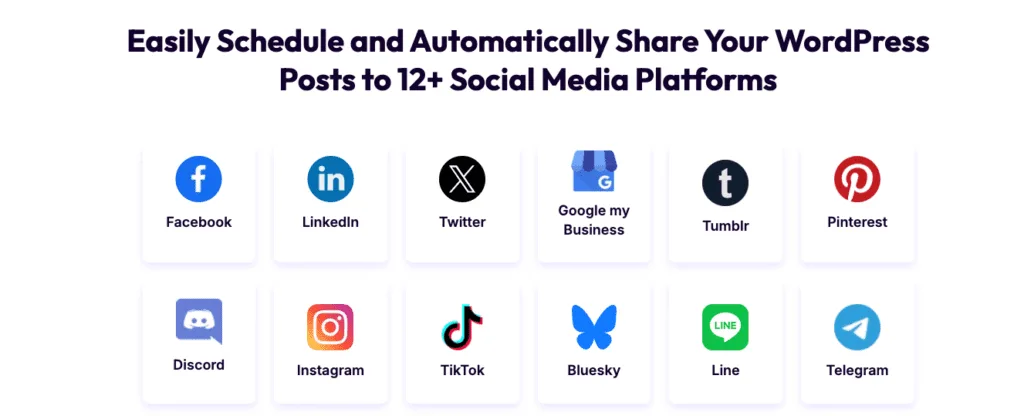
Linking social accounts happens right in the WordPress dashboard. Each network connects through OAuth, so no passwords get stored. It’s a quick permission tap and the account is linked. The free plan supports Facebook and LinkedIn profiles for basic sharing. The Pro plan adds Instagram, X (formerly Twitter), Pinterest, Google Business Profile, TikTok, Threads, Bluesky, Telegram, Discord, plus WooCommerce product posts.
Auto-posting follows the triggers users choose. Share when a post goes live or when an existing post gets updated. Prefer tighter control over timing? Post manually instead. Category filters narrow what goes out. Send only posts tagged “News” to social feeds while other content stays quiet.
Templates add personality without extra work. Each network gets its own message format with smart tags like {post_title}, {excerpt}, {url}, and {category}. Set a catchy intro once, then watch it pull in the title and short link for every share. URL shortening runs in the background when enabled. The plugin shortens links on its own or through third-party services, so posts stay tidy.
Activity logs make it easy to see what went out and where. Each attempt records the timestamp, target network, and any response codes or messages from the platform’s API. This helps pinpoint issues quickly, especially during first-time setup when confirming cron jobs and permissions work across networks. Review the first few shares to confirm everything runs smoothly.
How to schedule posts and manage the social calendar without conflicts
Post scheduling in Bit Social works like a smart helper that knows when each platform performs best. Each network runs on its own clock. Instagram might publish at 8 a.m., while LinkedIn waits for mid-morning. Nothing goes out in one big burst. Audiences see posts when they’re active, not when it’s convenient for the editor.
The scheduler follows the WordPress time zone set under Settings > General. Server time can drift from the site’s time, which pushes schedules off by an hour. Run a quick test post first to confirm timing before important updates roll out.
Evergreen posts stay useful with re-sharing. Filter by category, like Tutorials, and queue older posts to surface again without flooding feeds. Space repeats with care. For example, set a cap so the same post appears no more than once every two weeks. Feeds look fresh, and followers don’t see duplicates.
Timing runs on WP-Cron by default. It works, but quiet sites miss ticks when traffic is low. A real server cron job fixes that. Set a task to hit https://example.com/wp-cron.php?doing_wp_cron every five minutes, like */5 wget, and scheduled tasks trigger on time.
Free vs Pro features, supported platforms, and AI options
Testing Bit Social without paying first makes sense. The free tier covers basic posts to Facebook and LinkedIn profiles, so beginners get a real feel for the workflow. Bloggers and small business owners can confirm what works before spending money.
Pro expands reach and tools. In addition to Facebook and LinkedIn, it supports Instagram, X (formerly Twitter), Pinterest, Google Business Profile, TikTok, Threads, Bluesky, Telegram, and Discord. WooCommerce stores publish new or updated products automatically, which keeps customers updated and reduces manual work.
Here’s what each tier includes:
- Free: Facebook profile posting, LinkedIn profile posting
- Pro: Everything in Free, plus Instagram, X, Pinterest, Google Business Profile, TikTok, Threads, Bluesky, Telegram, Discord, WooCommerce product auto-posting
Pro adds AI content help with ChatGPT and DALL·E. Captions, short summaries, hashtags, and custom images are created inside WordPress. Users either add an OpenAI API key or switch on Bit Social’s built-in AI. Adding a personal key bills usage directly with OpenAI.
Some platforms apply stricter API rules for media. Instagram and TikTok require specific image aspect ratios and limit video length. These rules may cause a failed post or ask for users to sign in again after an API change. Issues like this come with fast-moving social networks, though they aren’t constant.
Is Bit Social a good fit for your WordPress workflow?
Frequent publishers get the most value here – weekly posts or more – and want content to go out on several social channels with minimal hassle. It works well for teams willing to watch the activity logs after each batch to catch issues early. The plugin turns a tedious task into a mostly hands-off routine, which saves time and keeps audiences active.
Keep these points in mind:
- Advanced scheduling, multi-platform posting, AI captions and images, and WooCommerce product sharing all need the Pro version.
- Budget for the license and possible AI fees when using OpenAI services.
- Some platforms enforce strict media rules that interrupt auto-posts, so expect tweaks.
A quick pilot plan helps prove things out:
- Install the free version from WordPress.org.
- Connect Facebook and LinkedIn profiles in the dashboard.
- Create one simple template per platform with placeholders like {post_title} and {url}.
- Schedule two test posts 24 hours apart to check timing.
- Review the activity log after each post to confirm success.
Before moving to Pro, verify these essentials:
- WP-Cron runs reliably on the server, or set an external cron job for accurate scheduling.
- Image size and format specs, especially for Instagram and Pinterest, so posts don’t fail silently.
- Template management per network, avoiding repeated text or cut-off messages.
A small test run reduces surprises later and builds confidence in the automation.
Leave a Reply