
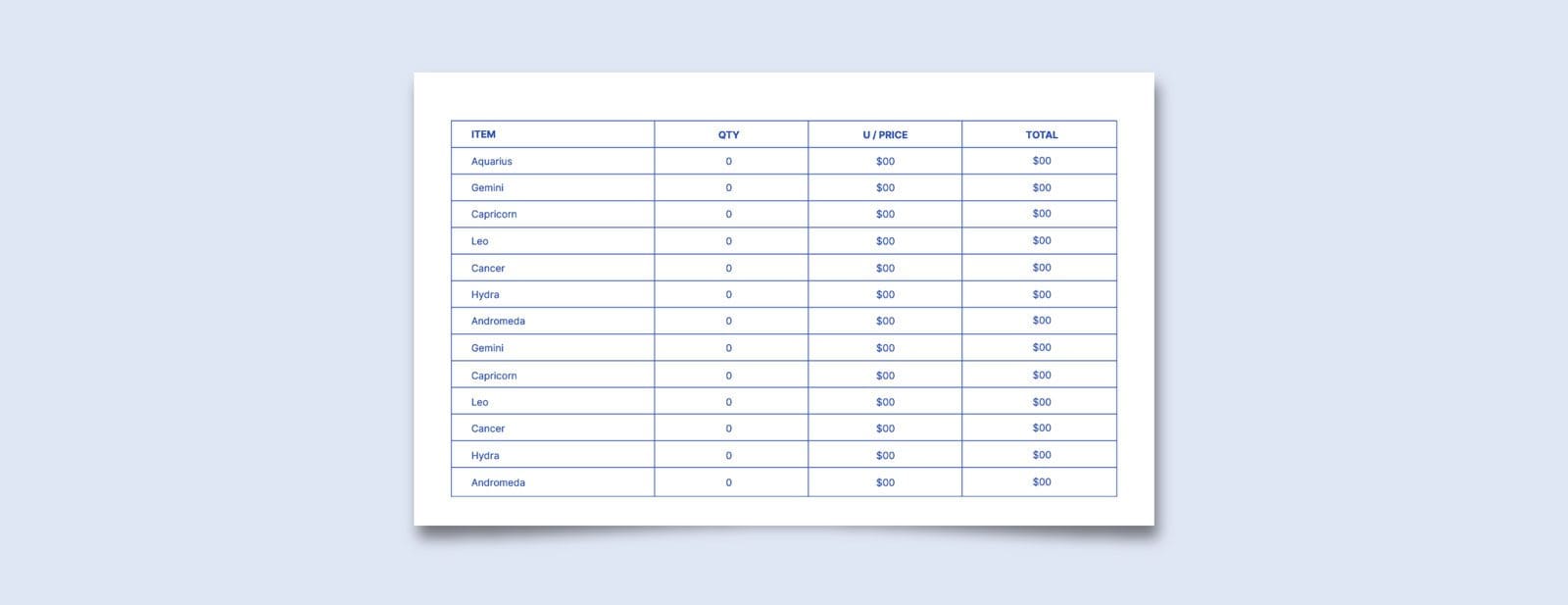
Turn plain WordPress tables into search results that get noticed and clicked. This guide walks through two practical paths: use a plugin like Superb Table, or add schema code by hand for tighter control.
Rich snippets and featured snippets are just Google’s extra highlights. Featured snippets are quick answers pulled from a page. Rich results add visual details like star ratings or prices that make a listing stand out. Tables help here because they present clear comparisons and details, so Google can read and display the data with confidence.
Plain HTML tables won’t unlock those extras. Google looks for structured data, which labels each value behind the scenes. Schema does that job. JSON-LD is the common format. It provides explicit clues about what each cell means.
A plugin can add the schema automatically and save time. Hand-written schema gives precise control over fields, types, and relationships. Both methods work. The choice depends on speed versus customization, the site’s workflow, and how often the data changes.
Mobile views matter. Tables need to resize, stack, or scroll well on phones. Compatibility with page builders like Elementor avoids layout conflicts and keeps editing simple. Pricing tables deserve special care: consistent labels, clear currencies, and clean columns help users and search engines.
New publishers get a clear path here: launch responsive WordPress tables, attach valid schema, and run Google’s Rich Results Test before shipping. That boosts the chance to earn rich results and claim stronger spots on the page.

Use the Superb Table plugin for fast tables with built‑in schema
Superb Table SEO Optimized Tables with Schema plugin auto-generates JSON-LD like ItemList or Product for tables, so there’s no hand-coding. Content gets structured data Google understands, which helps visibility in search. Check the docs first to confirm which schema types are available before publishing.
Here’s how it works:
- Install and activate the plugin.
- Create a new table in its interface.
- Pick the schema type that fits the content.
- Map each column – Name, Rating, Price – to the matching schema property.
- Insert the table with a shortcode or a Gutenberg block anywhere on the site.
Shortcodes work in most page builders, including Elementor and Beaver Builder, so tables stay consistent across layouts. Whether you’re using Block Editor or a builder, embedding stays simple.
Mobile setup matters. Superb Table lets columns stack vertically or switch to horizontal scroll on small screens. Test both on devices around 360 to 414 pixels wide to avoid awkward side-scrolling and cramped cells.
After publishing, run the page through Google’s Rich Results Test and Schema Markup Validator. These tools flag missing fields, like priceCurrency for offers, and confirm the markup is ready for rich results.
Step‑by‑step guide to configuring Superb Table and publishing
Create a new table in the Superb Table dashboard. Pick a preset that matches the content type, like Comparison, Pricing, or Specs. Presets include default columns and schema mappings, which saves setup time.
Map each column to the correct schema property. Tie the first column to Product.name, since it holds item names. For ratings, map cells to AggregateRating.ratingValue. Link price columns to Offer.price. Set currency globally or per row with Offer.priceCurrency.
Set table-level metadata when the list has a rank or sort order. Use ItemList.itemListOrder and choose a value like “http://schema.org/ItemListOrderDescending” in Advanced options.
Enable sorting or highlighting only if accessibility stays intact. Use for column headers so screen readers identify headings across columns. Mark the first cell in each row with for correct row identification.
Publish with a shortcode, for example [superb-table id=”123″], on posts, pages, or custom post types. If the site runs WPML or Polylang, verify the same ID renders correctly in each language without layout issues or data loss.
How to add schema markup to WordPress tables by hand
JSON-LD is the safest, most Google-friendly way to add schema markup to WordPress tables. Microdata stuffed inside table tags clutters the HTML and hurts readability. A separate JSON-LD script keeps things clean and follows Google’s guidance for rich results.
Below is a product list tied to a pricing table. It uses ItemList, where each ListItem maps to a row. Each product includes name, rating, price, currency, and availability.
<!-- Schema Markup in JSON-LD -->
<script type="application/ld+json">
{
  "@context": "https://schema.org",
  "@type": "Table",
  "about": "Comparison of Popular Programming Languages",
  "name": "Top Programming Languages Comparison",
  "description": "A table comparing popular programming languages by popularity, primary use cases, and year created.",
  "url": "https://example.com/seo-table-example"
}
</script>

<table>
    <caption>Comparison of Popular Programming Languages</caption>
    <thead>
        <tr>
            <th>Language</th>
            <th>Popularity (TIOBE Index Rank, 2023)</th>
            <th>Primary Use Cases</th>
            <th>Year Created</th>
        </tr>
    </thead>
    <tbody>
        <tr>
            <td data-label="Language">Python</td>
            <td data-label="Popularity">1</td>
            <td data-label="Use Cases">Data Science, Web Development, Automation</td>
            <td data-label="Year Created">1991</td>
        </tr>
        <tr>
            <td data-label="Language">Java</td>
            <td data-label="Popularity">2</td>
            <td data-label="Use Cases">Enterprise Applications, Android Apps</td>
            <td data-label="Year Created">1995</td>
        </tr>
        <tr>
            <td data-label="Language">JavaScript</td>
            <td data-label="Popularity">3</td>
            <td data-label="Use Cases">Web Development, Frontend/Backend</td>
            <td data-label="Year Created">1995</td>
        </tr>
    </tbody>
</table>
Position numbers should match the order on first load, not any order created by sorting or filters. Search engines read the original layout to understand which item comes first, second, third.
Validate before publishing with Google’s Rich Results Test. Watch for common errors:
- Missing priceCurrency inside offers
- Ratings typed as strings instead of numbers
- Wrong availability URLs (use https://schema.org links)
Manual coding can feel tricky at first, but keeping schema separate from visible HTML makes debugging simpler and gives search engines clear signals about meaning.
Make your tables responsive, accessible, and Elementor‑ready
Most WordPress table plugins that work with Elementor use shortcodes, which sit fine in the Text Editor or Shortcode widgets. Keep them out of dynamic loops or complex elements that might strip scripts or break features. Put tables in simple widget areas so they render predictably.
Responsive behavior usually falls into two patterns: horizontal scrolling and stacked cards. Horizontal scroll keeps every column in one row, and users swipe left or right on small screens when column structure matters. Stacked cards turn each row into a vertical block, which reads better on narrow devices because each cell becomes its own line. Test both with real content between 320 and 768 pixels wide to see what feels smooth for the audience.
Accessibility carries equal weight with design and behavior. Use for headers and for data rows so screen readers move through content in a sensible order. Add a to explain what the table shows. Set scope attributes on headers, like scope=”col” for column headers, to define relationships across rows or columns. Keep color contrast at least 4.5:1 for text inside cells so people with low vision or anyone in bright light can read it.
Performance matters a lot on mobile. Keep tables lean. Stay under about 100 rows per page to avoid heavy DOMs that slow rendering and trigger layout shifts (CLS) or input delays (INP). Those issues drag down Core Web Vitals and frustrate visitors who expect quick taps to respond.
Style with restraint. Minimal CSS such as word-break: break-word; stops long product names from spilling out of cells. Don’t hide schema-related content with display:none. For stacked layouts, use data-label attributes so each cell shows its header label when rows switch to blocks on small screens. That preserves clarity and keeps accessibility intact.
Pricing and comparison tables with valid schema and next steps
Choosing how to add pricing tables with schema in WordPress comes down to priorities. Need speed and guardrails? Superb Table sets up Product and Offer markup fast. It covers price, currency, availability, and optional expiration dates with safe defaults. Need unusual fields like subscription terms, metered billing, or regional prices? Hand-written JSON-LD gives full control, no plugin limits.
Never mark up content that users can’t see. Google flags misleading or hidden data and may ignore it or apply penalties. Keep every structured data field aligned with on-page copy, numbers, and labels. When listing competitor prices or specs, verify everything. Old numbers or missing stock info lead to invalid offers and lost rich results.
After publishing, validate the page in Google’s Rich Results Test to find issues early. Then check Search Console in Enhancements under Products, or Unparsable structured data if errors appear. Monitor impressions for rich results and fix warnings quickly. Consistent checks protect click-through rates and overall SEO health.
Leave a Reply