

Want to add PDF viewing to a WordPress site without tanking performance or opening security holes? This guide covers a few handpicked best WordPress PDF plugins that handle everything from basic embedding and thumbnail previews to flipbooks and download management with WooCommerce or Gravity Forms. No hype here. The focus is on what matters: speed, mobile experience, security, accessibility, and whether updates actually happen.
Browser defaults don’t cut it for PDFs. iOS Safari drops important controls like download buttons. Iframe embeds break responsive designs on different screen sizes. Sticking with browser-only viewing means no thumbnails, no analytics, none of the extras dedicated viewers offer. Picking the right plugin isn’t about convenience, it’s about giving users something that actually works.
Several things happen behind the scenes. Page load impact matters, which means thinking about lazy loading and file sizes. Keyboard navigation needs to work properly. Protection against link sharing or direct file access is important. Managing these tools inside WordPress’ block editor should be straightforward, not a hassle. One more thing to mention: compressing PDFs before upload helps a lot. Keep them under 2-4 MB if possible. For really large files over 20 MB on shared servers, moving storage to a CDN or cloud service makes sense.
WordPress PDF embedding plugins that just work
PDF Embedder uses a JavaScript viewer instead of iframes, which keeps things running smooth. It adjusts to different screen sizes without messing up layouts. Mobile users won’t have problems. The free version covers basic embedding, but the Pro version adds a download button and continuous scrolling that makes long documents easier to read. Over 300,000 WordPress sites use it, so plenty of people trust it for simple PDF embedding.
Embed PDF Viewer from wpdevart uses Google’s viewer inside an iframe. Setup takes almost no time, and it works across browsers because you’re using Google’s technology. The downside is your PDFs show Google’s branding and interface elements. If those don’t match your site’s look, it might bother you. But if you care more about easy setup and broad compatibility than custom design, this plugin works fine.
PDF Poster handles multiple PDFs on one page, which helps if you need to display lots of documents. It works with Gutenberg blocks and shortcodes. The lazy loading feature stops pages from getting bogged down when several large files try to load at the same time. You should turn on “Enable lazy load” if you’re showing many PDFs – otherwise the page can get slow and clunky for visitors.
A few things to watch for performance when using WordPress PDF plugins for embedding and viewing. Put PDFs lower on the page so they don’t eat up resources right away. Set viewer JavaScript files to load after your main content shows up. Run Lighthouse tests and check Total Blocking Time to see how things perform. Viewer scripts shouldn’t block critical rendering or your pages will feel sluggish.
Create PDF thumbnails with a WordPress plugin
Visual catalogs turn boring PDF lists into something people actually want to click through. A WordPress plugin for PDF thumbnails handles the work automatically, pulling an image from the first page whenever someone uploads a file. Visitors get a preview without opening every document, which matters when browsing through dozens of files.
These plugins usually need server software like ImageMagick or Ghostscript to convert pages into images. If those components aren’t installed, things won’t work right. Most hosts have them, but it’s worth checking.
Custom post types help organize everything. Setting up a “Documents” type and displaying thumbnails in a grid makes resource libraries way more usable than text links stacked in a list. Clickable images just get more attention. Google Analytics shows higher click-through rates when sites switch from plain links to thumbnail grids, probably because the visual approach feels less like homework.
Alt text shouldn’t be generic. “PDF thumbnail” tells screen readers nothing useful. Something like “Pricing Guide (PDF) cover” actually describes what’s there. It takes an extra minute but makes catalogs accessible to everyone instead of just people who can see the images.
Load times get better with WebP format sized around 480 to 720 pixels wide, depending on the column layout. Lazy-loading keeps the page light since thumbnails only load when someone scrolls down to them. Plus, linking thumbnails to viewer pages instead of dumping people straight into raw PDF files keeps them on the site and gives better context for what they’re about to open.
PDF flipbook plugins for immersive brochures
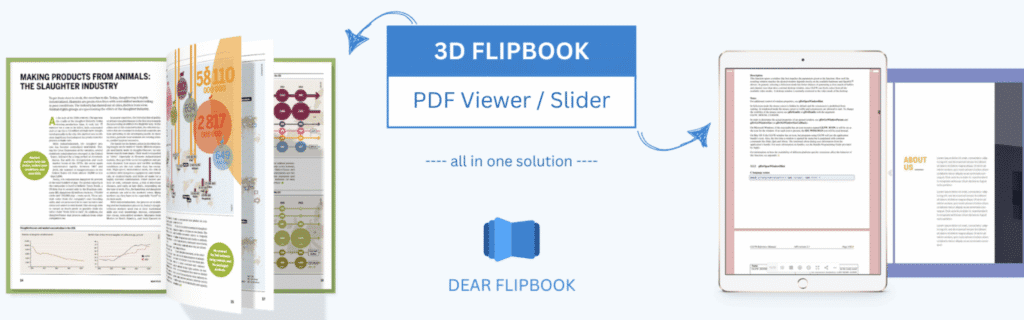
Real3D Flipbook uses WebGL and CSS3 to animate page flips. The animations look pretty smooth and feel close to handling an actual magazine. Users can view PDFs or images inline on the page, or they can pop up in a lightbox. Single-page and double-page layouts both work, which helps if someone needs different formats for different projects. Deep-linking is built in, so readers can land on a specific page instead of starting from the beginning every time. That helps with sales decks or when highlighting one section of a longer document.
Older phones sometimes struggle with the GPU effects. Having a backup viewer that strips out the fancy stuff makes sense for those situations.
DearPDF goes for 3D flip effects and adds a shelf-style interface on top. It looks polished, which works well for lookbooks or magazines where appearance matters a lot. FlowPaper handles large files without choking. Newspapers and other heavy documents load fast, and users get zooming, text search, and full-screen mode. Both plugins need proper licensing if they’re used commercially, so checking that upfront avoids hassle later.
Flipbooks work well for marketing materials. Catalogs, seasonal brochures, and product guides look better with the page-flip effect because the format adds some polish. But they’re not great for forms, manuals, or compliance documents. The animation layers make it harder to copy text quickly, and accessibility tools don’t always play nice with the effects.
A couple things help get more out of flipbooks. Placing call-to-action buttons near the viewer gives readers an obvious next step. “Download spec sheet” above the flipbook and “Contact sales” below it tells people what to do once they finish browsing. Adding UTM parameters to those links tracks which flipbooks actually drive clicks and conversions, so there’s no guessing about what’s working.
WooCommerce PDF invoices and Gravity PDF integrations
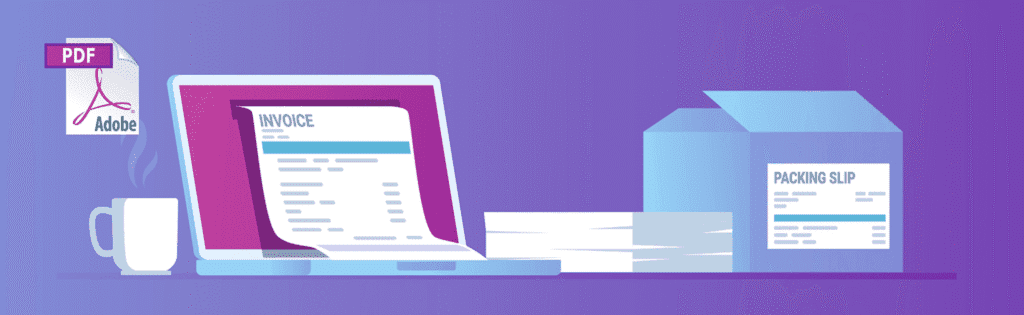
WooCommerce PDF Invoices & Packing Slips handles order paperwork without much fuss. It creates invoices automatically when an order status changes. Stores can customize these PDFs using HTML and CSS to match their branding. The invoices attach to customer emails, and they get saved in the wp-content/uploads folder for later. Anyone selling to European customers should make sure VAT fields are filled out correctly since compliance matters there.
Gravity PDF converts Gravity Forms submissions into downloadable PDFs. It does more than just print a basic copy of what someone filled out. Conditional logic means only relevant information shows up based on what users selected. Custom templates keep everything looking clean. If forms contain sensitive data like health information or personal identifiers, access can be locked down by disabling public URLs. Signed links that expire after use work better for confidential forms since they stay secure but can still be shared when needed.
Google Drive embedding keeps files offsite but displays them right inside WordPress pages or posts, which helps with site performance. Plugins like Google Drive Embedder insert files directly through the editor without needing code snippets. Sharing permissions need to be set to “Anyone with link – Viewer” so visitors can view documents without logging in but can’t accidentally edit anything. Google’s viewer does add some UI elements over the content, and watermarks sometimes appear if limits get hit. Worth testing that before using it across the site.
For private documents with any of these methods, controlling access becomes important. Membership or role-based plugins restrict who sees what. Forcing downloads through PHP handlers means users need proper permissions before they can grab files directly from the server.
Choose the right WordPress PDF viewer plugin – checklist
Picking a WordPress PDF viewer plugin depends on what someone actually needs it for. Basic embedding without much customization? Embed PDF Viewer handles that without much setup. Sites with document libraries where thumbnails matter should pair a PDF Thumbnail Generator with whatever viewer they choose. Brochures and digital catalogs work better with DearPDF or FlowPaper since those create the page-flipping effect people expect from that kind of content. Online stores already using WooCommerce can automate invoice generation without installing something separate. Gravity PDF converts form submissions into downloadable documents if that’s part of the workflow. Google Drive-compatible viewers make sense when keeping files off the main server matters.
File size affects load time more than most people realize. Compressing PDFs before upload makes a noticeable difference, especially on mobile connections. Lazy loading stops everything from loading at once – thumbnails and embedded files only pull in when someone scrolls to them. JavaScript for viewers should load after the main page content shows up, otherwise visitors sit staring at blank screens. Thumbnail images load faster through a CDN. After installing a plugin, Core Web Vitals tests should show Largest Contentful Paint under 2.5 seconds on mobile and Total Blocking Time below 200 milliseconds.
Accessibility gets overlooked but it shouldn’t. PDFs need actual text layers, not just scanned images, because screen readers can’t interpret pictures of words. Keyboard navigation has to work inside the viewer – tab keys should move through controls without requiring a mouse. Language tags and document titles help assistive technology figure out what’s in each file. A direct download link next to every embedded PDF gives people the option to grab the file instead of viewing it inline.
Security matters when PDFs contain anything private or restricted. Storing files outside the public webroot or behind WordPress capability checks prevents unauthorized access. Directory indexing should be turned off so people can’t browse entire folders by guessing URLs. Hotlink protection stops other sites from embedding files directly and eating up bandwidth. Expiring signed URLs work well for paid content since links stop working after a set time and can’t get shared around indefinitely.
Choose whichever plugin from this guide matches the use case, run through the setup checklist, and test it before launching. Questions or results worth sharing help keep this resource updated as plugins change.
Leave a Reply