
Anyone who’s tried free text-to-speech tools knows the frustration. A platform looks promising, then a tiny character cap stops real testing. Exports show up covered in watermarks. Sometimes downloads aren’t allowed at all, so audio only plays in a browser tab with no way to save or share. It makes people question whether free and useful TTS options exist.
This guide spotlights free TTS AI tools that are genuinely free in practice. No credit card walls, real export options, and enough quota to create more than a single test clip before a paywall shows up. Each pick includes clear notes on monthly speech limits, voice quality, export formats like MP3 or WAV, project saving, and whether commercial use is allowed.
Evaluation focused on voice quality first. Neural voices with smooth prosody, not metallic speech. Generous free quotas came next, measured in characters or minutes per month. The review also weighed privacy policies to ensure scripts aren’t stored or reused without consent, API access for automation needs, and cross-platform support so tools run well on different devices and browsers.
The ranking favors genuine freedom of use over marketing claims. No hidden watermarks on exports, no forced online-only playback, and no bait-and-switch limits buried in the fine print. These tools work well for podcasts, accessibility, teaching materials, and creative audio on a tight budget. These picks deliver useful output without gimmicks.
On this page
- 1. Speechify free voices, strengths, and real limits
- 2. ElevenLabs free plan, voice quality, and cloning rules
- 3. Murf free editor for studio-style testing with quotas
- Other free options students should try for listening
- Ranked picks for the best truly free TTS needs
- Side by side comparison of free quotas, exports, and rights
- How to choose the best free TTS tool for your use case
- Best free TTS choices for YouTube, homework, and more
- Wrap up with smart ways to manage free TTS limits
- Frequently asked questions
1. Speechify free voices, strengths, and real limits
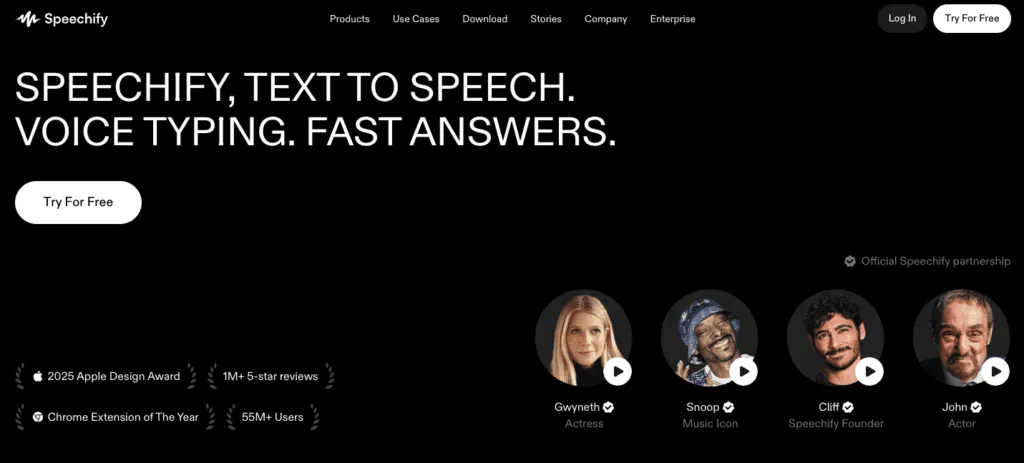
Speechify Free lets people listen to web pages and documents in a browser or on the mobile app. The free tier sticks to standard voices, not the paid celebrity ones. The neural voices sound natural enough to follow without that stiff, robotic feel.
Saving audio is where limits show up. The web app often blocks exports or ties them to paid plans. The mobile app plays content well but doesn’t offer batch MP3 downloads on free accounts, so saving many files at once becomes a hassle.
Voice quality works well for everyday listening. Students and casual listeners can get through articles, PDFs, and Google Docs without eye strain. Advanced voice styles and accents sit behind paywalls, so people wanting more range or personality won’t get much variety here.
There are a few annoyances. Ads appear, and upgrade prompts show up often. Speed controls and text highlighting are available on the free plan. Commercial work like video voiceovers typically needs a subscription.
Speechify Free suits personal listening when someone wants simple text-to-speech and doesn’t need studio-grade exports or bulk downloads. It’s built for reading comfort, not professional production.
2. ElevenLabs free plan, voice quality, and cloning rules
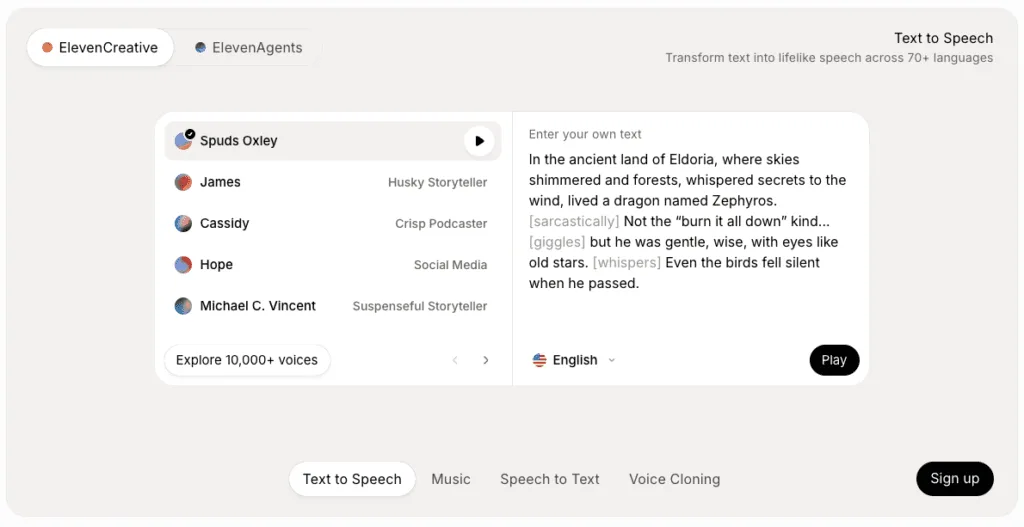
ElevenLabs‘ free text-to-speech plan offers a small monthly character limit to try its natural neural voices without paying. The allowance changes from time to time, so checking the billing page in your account settings helps avoid surprises.
Voice cloning is where limits appear quickly on the free tier. Access to models is restricted, professional-level cloning isn’t available, and usage rules for cloned voices are stricter than on paid plans. Overall, you’ll find less flexibility compared to premium access.
Export options are solid for a free plan. Both MP3 and WAV downloads work, so saving audio locally is straightforward. API access exists, but rate limits and monthly caps slow down automation and bulk jobs unless you upgrade your account.
Commercial use on the free plan is limited. ElevenLabs specifies where and how free audio can appear in monetized work, and the license has specific restrictions. Reading those terms carefully is important because using the service beyond personal or test purposes risks violating the agreement.
Short content is where this plan works best – YouTube intros, quick product clips, trailers, and teasers. The natural voice quality stands out on small projects, even with tight limits. For fast, polished voiceovers on short scripts, the free plan offers real value.
3. Murf free editor for studio-style testing with quotas
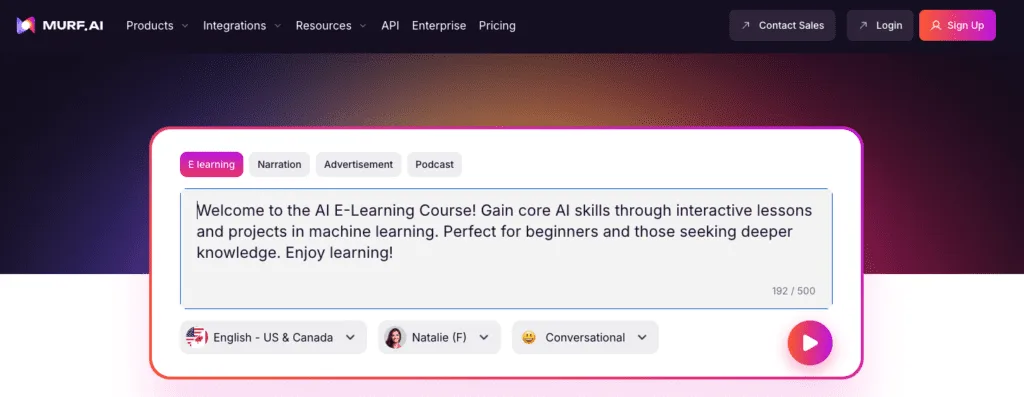
Murf’s free text to speech editor gives access to the Studio, but voice choices and export rights stay limited. Full script previews help people hear pacing and tone before committing. Clean audio or video downloads usually need a paid plan, since free exports often include watermarks. The setup encourages exploration without handing over production‑ready files.
The timeline editor feels professional. Users adjust emphasis, add pauses, and fix pronunciation. These tools make synthetic speech sound closer to a real voice, not a flat robot. Even on the free tier, the control over timing and delivery stands out.
Limits show up fast for anyone wanting high-quality exports or commercial use. Free video exports tend to include watermarks. Rights for client work and access to extras like emotional voice styles and team features sit in paid tiers.
Multilingual options add range, with several accents and languages available at no cost. It’s useful for testing message fit across audiences. Stronger emotional delivery and more expressive voices remain locked to paid plans.
The sweet spot for the free editor is script trials and process dry runs. It helps teams map steps, refine copy, and share internal drafts for feedback. Save polished public releases for a paid plan when final quality and usage rights matter.
Other free options students should try for listening
- NaturalReader Free: Works in the browser and apps with a solid set of standard voices. It’s built for listening on the spot, not for saving MP3 files. If storing audio isn’t needed, it fits well.
- CapCut TTS (in-video editor): Good for quick social clips, with free AI voices inside the video editor. Exports don’t add extra TTS fees. Voice choice is limited compared to dedicated tools.
- Microsoft Edge Read Aloud: Lives inside the browser and reads web pages and PDFs with free voices. Students who want to listen without dealing with downloads or formats will find it simple.
- Google Cloud Text-to-Speech trial credits: Offers WaveNet voices through limited trial credits. Audio quality is strong, but trials end fast. Suits testing, not long-term use.
- iOS/macOS built-in TTS (Siri voices): Apple devices include offline Siri voices that read text across the system. Exporting audio needs workarounds like recording with QuickTime, which makes it awkward for polished work, but fine for casual listening or personal projects.
Ranked picks for the best truly free TTS needs
- ElevenLabs’ free plan works well for short clips with voices that sound close to real people. MP3 export is simple, so saving and sharing takes no effort. The monthly character limit runs out fast, so it fits quick projects, not long scripts.
- Speechify’s free tier suits everyday listening on web and mobile, handy for students with articles or PDFs. Voices stay smooth and pleasant. Exports are limited unless the account upgrades.
- Murf’s free plan offers studio-style controls for pacing and emphasis, similar to real recording sessions. Free exports often include watermarks or limits, which pushes serious producers toward paid plans.
- NaturalReader’s free version focuses on straightforward on-screen reading in the browser or app, with no extras to install. It works for routine study when listening matters more than saving audio files.
- CapCut TTS slides into quick social video workflows with basic AI voices built into the editor at no extra charge. Voice variety is small, but it’s enough to add spoken lines to short clips without extra tools.
Side by side comparison of free quotas, exports, and rights
Free text-to-speech plans don’t all offer the same things. Most cap usage by characters per month, usually somewhere between 5,000 and 30,000. CapCut works differently, since limits tie to clip length instead of characters. Short posts fit well there, but long articles don’t.
Saving files is a key difference. ElevenLabs lets free users download MP3 and WAV, so offline listening is simple. Speechify and NaturalReader prioritize smooth in-app playback, while audio export sits behind a paywall or stays limited. Murf allows free exports, but video outputs often carry a watermark, which pushes serious work toward a paid plan.
Monetized projects raise licensing questions. Many free tiers don’t allow commercial use. ElevenLabs and Murf publish clear terms, and users should review those before putting voices into public or paid content.
All cover English well. ElevenLabs and Murf add more accents and styles than CapCut or built-in Apple and Microsoft readers. Local system voices keep text on-device, which helps with privacy. Cloud tools process text on servers, so sensitive material may need extra care.
| Tool | Monthly Quota | Commercial Use Rights |
|---|---|---|
| ElevenLabs | ~5k – 30k characters | Limited; see license details |
| Speechify | ~5k – 30k characters | Often restricted on free tier |
| Murf | ~5k – 30k characters | Limited; see license details |
| NaturalReader | Playback-focused, not strict quota | Non-commercial on free tier |
| CapCut | Bound by clip length | Depends on project and platform |
This quick snapshot maps common needs to what free plans actually include.
How to choose the best free TTS tool for your use case
Picking a free text-to-speech tool depends on how the audio will be used. For content creation like YouTube intros or app demos, downloadable files matter. Tools that export MP3 or WAV on the free tier save time. ElevenLabs is strong here since the free plan includes easy downloads, so sharing and reusing clips isn’t a hassle. If the goal is listening to articles or PDFs, exports don’t matter. Playback-first tools such as Speechify or Microsoft Edge Read Aloud work well. They offer smooth reading, speed control, and text highlighting to help keep your place.
Some people need more than playback. When flow, timing, and pronunciation tweaks are important, editor-style platforms like Murf make sense. Free plans often restrict polished exports or add watermarks, but they give precise control over pauses and emphasis. Small adjustments reduce that robotic feel and improve clarity when expression matters.
Privacy deserves a closer look before pasting sensitive scripts into cloud services. Offline readers built into devices, like Apple’s Siri voices or Windows Narrator, keep everything local. No data leaves the machine, which helps when dealing with confidential material. These options trade a few advanced features for peace of mind.
A quick test helps narrow things down. Run the same 100-200 word script through several tools. Listen for rhythm, breaths between sentences, and pacing. Subtle differences add up, and preferences vary between warmth in tone and crisp, precise delivery.
Choosing a free TTS should match the workflow and respect limits like monthly quotas or commercial rights tucked behind paywalls. A little testing up front prevents headaches when deadlines approach.
Best free TTS choices for YouTube, homework, and more
Creators often chase free TTS for YouTube, then hit a wall later. A tool might allow audio exports, yet its license bans monetized use. Read the terms first. Check usage rights for ads, sponsorships, and platform rules. Otherwise, expect takedowns or demonetization. Many free plans allow personal use only, so they don’t cover commercial distribution, no matter how good the voice sounds.
Students value very specific features. Sentence-level highlighting keeps place in dense readings. Faster playback on phones, around 1.5x to 2x, trims study time. Integrations with note apps turn listening into active study with annotations and quick references. Free tools with these features make long articles and textbooks feel manageable, even during late-night cram sessions.
Short promo clips fit free tiers well. Podcasters testing 30-60 second teasers usually stay under monthly character caps without upgrading. Full episodes are a different story. Quotas vanish fast, edits multiply, and stitching segments becomes a chore. Free-only workflows work for pilots, trailers, or quick bumpers, not hour-long shows.
Accessibility gets a big boost from built-in readers in operating systems and browsers. They cost nothing, work offline, and start instantly. Voices sound plain and lack emotional range compared to paid AI, yet they stay reliable for daily tasks like scanning websites or reading emails. Consistency matters more than flair for routine reading.
Localization introduces tricky edge cases. Language switches mid-sentence can break rhythm. Names, dates, and currencies slip into English rules when they shouldn’t. Some engines misread formats or stress the wrong syllables. Test tricky passages first and set locale options where possible. Global audiences expect natural pronunciation across mixed-language content.
Wrap up with smart ways to manage free TTS limits
No free text-to-speech tool offers unlimited characters without any restrictions. Providers cap usage to control costs, so monthly limits are normal. Chasing a tool with unlimited usage wastes time. Pick services that match real needs instead, like smooth exports for quick sharing or stable playback for long study sessions.
Testing two TTS tools with the same script shows real differences in tone, pauses, and pronunciation. This side-by-side check makes it clear which voice fits the ear and workflow. Keep a primary service and a backup to manage usage when quotas reset. A fallback avoids delays when a project runs long.
Before publishing or sharing audio, run a quick license check: export allowed, commercial rights granted, attribution required, or not. If any term feels unclear, wait. Risking takedowns or legal issues isn’t worth it. Record a baseline snippet of a favorite voice, too. If a provider updates models later, shifts in timbre or pacing stand out quickly, and switching becomes an easy decision.
Services change quickly. Limits move, voices improve, or vanish. Revisit choices every few months to keep things efficient. Move early if quality drops. Free TTS isn’t about finding one comprehensive solution. It’s about matching tools to what matters: clear sound, fair terms, steady availability.
Frequently asked questions
What are the best free text to speech solutions available for commercial use?
Commercial use is the real catch rather than voice quality. Many free tiers don’t allow it at all. Among the tools compared here, ElevenLabs and Murf publish clear terms that still need reading, Speechify usually restricts commercial work to a subscription, and NaturalReader’s free tier is non-commercial.
Leave a Reply