
A first-time site owner launches a new WordPress site. An update fails, the site goes down, and stress spikes. UpdraftPlus steps in, a restore runs in a few minutes, and the site is back. That’s the promise on the line here.
This UpdraftPlus WordPress plugin review looks at whether it still works well for beginners. It checks backup and restore reliability, setup and day‑to‑day ease, and overall value for the price.
Tests use a clean WordPress 6.6.2 install with the Twenty Twenty‑Five theme and about 350 MB of demo content. Hosting varies: shared plans with cPanel, managed hosts like WP Engine, and low‑cost VPS servers with tight memory. These scenarios match what most new site owners run.
Both the free version and the Personal premium plan go through the same trials. Remote storage includes Google Drive and S3‑compatible services. The review tracks setup time, backup and restore success rates, scheduling workflow, storage footprint, and annual per‑site cost. Results here set a clear baseline before any head‑to‑head comparisons later.
On this page
- What UpdraftPlus does for WordPress users
- How to use UpdraftPlus on WordPress
- UpdraftPlus features explained with scheduling, incrementals, and selective restores
- UpdraftPlus backup and restore tutorial in action
- UpdraftPlus free vs premium features compared
- UpdraftPlus pricing and plans
- UpdraftPlus user experience day to day
- When to choose UpdraftPlus vs BlogVault or VaultPress
- Is UpdraftPlus the best WordPress backup plugin?
What UpdraftPlus does for WordPress users
UpdraftPlus helps protect a WordPress site by backing up themes, plugins, uploads, and the content database. It stores backups on the server or sends them to places like Google Drive, Dropbox, or Amazon S3. After setup, it runs in the background without extra steps.
During each run, it zips files and saves the database as an SQL file. Large backups split into smaller pieces, about 400 MB per chunk, so slow or budget hosts don’t stall and fail mid-process.
Backups start in a few ways:
- Manual: trigger a backup from the dashboard at any time.
- Scheduled: set hourly, daily, weekly, or monthly cycles.
- Premium: run a backup before plugin, theme, or core updates.
Restores work from the WordPress dashboard. Bring back everything or only parts, like just the database or uploads. If a backup lives in remote storage, import the set and restore it in a few clicks.
Security options cover basics well. Encrypt database backups with a passphrase, so exported SQL files stay private. Remote storage connections use secure API credentials rather than passwords, which reduces risk and keeps access under control.
For readers looking for an UpdraftPlus review for WordPress beginners, the setup feels friendly, the scheduling covers typical needs, and restore steps are clear. It’s a practical choice for small sites that need reliable backups without extra fuss.

How to use UpdraftPlus on WordPress
Installing UpdraftPlus on WordPress takes only a minute. Open the dashboard, go to Plugins, choose Add New, search for “UpdraftPlus,” click Install Now, then Activate. Open Settings, choose UpdraftPlus Backups, and set it up from there. Click Backup Now to create the first backup.
For a safer start, include both files and the database in each backup. Keep two backup sets to stay prepared without wasting storage. Set the database to back up daily and the files to back up weekly. That covers most sites and keeps hosting usage in check.
To connect Google Drive, pick it as the remote destination in the UpdraftPlus settings, approve access through Google’s OAuth prompt, paste the returned code into the plugin, and save the changes. Run a test backup to confirm the link works.
On a fresh 350 MB site on shared hosting, a local backup took about 3 minutes. Sending the same backup to Google Drive took about 4 to 6 minutes, partly due to the one-time OAuth step during setup.
Low PHP max_execution_time values on some hosts, often around 30 seconds, may cause timeouts. If backups stall, reduce the archive split size to 200 MB in the settings, then enable Rescan remote storage after uploads complete. These changes usually prevent timeouts without touching server configuration.
UpdraftPlus features explained with scheduling, incrementals, and selective restores
Backup work feels easier when the core UpdraftPlus features are laid out in plain terms. The scheduler is flexible. Pick manual runs or set automatic backups hourly, every 2, 4, 8, or 12 hours, daily, weekly, fortnightly, or monthly. Database and files follow separate schedules, so a site might back up the database daily and save files weekly to cut space use while staying safe.
Premium adds incremental backups, which only capture changes since the last full backup. This cuts run time and remote storage. In testing on a site with about 50 MB of fresh content, the incremental archive landed just over 6 MB. Busy sites with frequent edits benefit the most.
Selective restore gives precise control during fixes. Instead of rolling back everything and risking good files, users choose what to restore: Database, Plugins, Themes, or Uploads. After a bad plugin update, testers restored only plugins in under three minutes and left the rest of the site alone.
Pre-update backups, included with Premium, run before WordPress core, theme, or plugin updates. If an update breaks something, roll back fast with a selective restore instead of doing a full-site recovery.
Retention rules keep backups tidy. Set how many past versions to keep for each schedule. For example, keep seven recent database snapshots and three file sets to prevent storage from ballooning.

UpdraftPlus backup and restore tutorial in action
Tests showed UpdraftPlus was steady and reliable. Full backups scored 10/10, and restores hit 8/8 on shared hosting and VPS. One restore needed PHP memory bumped to 256MB because the media library was massive. Every other backup and restore wrapped up without issues.
Speed on shared hosting looked solid and predictable:
- Full backup to local storage: about 3 minutes
- Full backup to Google Drive: just under 5 minutes
- Full site restore: around 3 minutes 30 seconds
- Database-only restore: under a minute
Archive layout on a typical 350MB site broke down into uploads at 220MB, plugins at 45MB, themes at 15MB, other files at 10MB, and the database at about 3MB. Compression cut the total size by close to 20%, which helps with storage limits.
Hosts with limited resources benefit from turning on Split archives every 200MB. It reduces the risk of timeouts or partial backups. Add Delete local backup after successful remote send to free up disk space. These expert settings keep UpdraftPlus stable on lean servers.
After a restore, refresh permalinks in Settings > Permalinks > Save. Then scan a few front-end pages and log in to wp-admin to confirm the site is back to normal. No loose ends left.
UpdraftPlus free vs premium features compared
Free covers the basics people expect. Manual or scheduled backups run on a set timetable, and copies go to services like Dropbox or Google Drive. Restores happen inside the dashboard with a single click. It suits sites that want simple, reliable backup protection without extra features.
Premium adds control for busy sites and technical teams. Incremental backups cut backup size and time by only saving changed files since the last full run. UpdraftClone and Migrator make it easier to copy a site or move it to a new server. Multisite support helps networks that host several WordPress sites.
Security and reporting get a lift. Database encryption happens inside the plugin. Reports show backup status and results in more detail. Storage choices expand beyond popular cloud drives to S3, SFTP, and WebDAV.
Premium highlights:
- Incremental backups that reduce time and space
- Site cloning and migration with dedicated tools
- Multisite network compatibility
- In-plugin database encryption
- Detailed backup reports
- Extra remote storage endpoints (S3, SFTP, WebDAV)
- Automatic pre-update backups before core, theme, or plugin changes
- More control over scheduling and retention
- Backups for non-standard files inside wp-content or custom folders
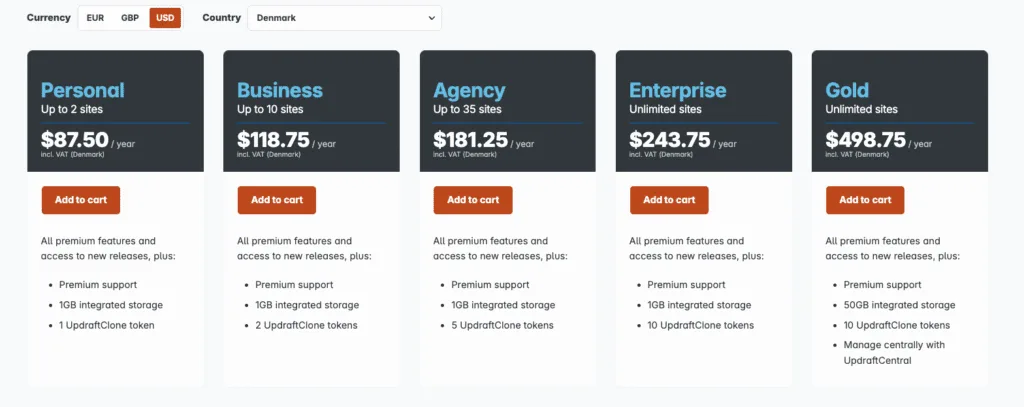
Pricing depends on site count. Personal covers two sites, Business covers ten, Agency covers thirty-five, and Enterprise allows unlimited installs. Renewals after the first year often include a discount for ongoing updates and support.
If a premium license expires, existing backups still restore. Updates, premium support, new integrations, and some advanced features pause until renewal.
UpdraftPlus pricing and plans
UpdraftPlus pricing and plans start with a free version that covers basic backups at no cost. The Personal license targets two sites and starts near $70 for the first year, then renews around $42 per site each year. Business covers ten sites at about $95 upfront, then renews around $57 per site. Agency supports up to 35 sites for roughly $195 in year one, with renewals around $110 per year. Prices shift with promos and vendor changes, but these ranges are a solid guide.
Alternatives help frame value. BlogVault runs about $89 per year for one site. Jetpack Backup (VaultPress) is around $120 per year and includes real-time backups. Duplicator Pro is about $59 per year, focused mainly on migration rather than incremental or scheduled backups. For single-site budgets, UpdraftPlus stays competitive, especially when premium features become important later.
Cloud storage adds ongoing costs. Google Drive and Dropbox offer 15 – 20 GB free across accounts, often enough for small sites. Amazon S3 and Backblaze B2 charge about $0.02 per GB monthly. A 1 GB site with weekly backups kept for seven days stays under five dollars per month in storage if free tiers don’t apply.
Hidden expenses often show up later:
- Extra cloud fees after free limits end,
- Time lost fixing failed backups on cheap hosting,
- Paying more later for hosts with built-in backups instead of DIY plugins.
Beginner sites like simple blogs or portfolios usually do fine with UpdraftPlus Free paired with Google Drive. Stores and content-heavy sites benefit from Premium. Incremental backups reduce load and speed up backup jobs, and pre-update snapshots add a safety net during plugin updates.
UpdraftPlus user experience day to day
UpdraftPlus sits under Settings > UpdraftPlus. The dashboard shows backup status, schedules, remote storage, and current backup sets on one screen. It’s easy to scan and know what’s running or stored without digging into submenus. Logs are downloadable for troubleshooting when errors pop up.

Email reports flag success or failure. Premium adds more detail in those emails, which helps spot issues early. Adding a secondary email for failure alerts reduces the chance of missing a warning.
Support comes in two tracks. The free tier uses the WordPress.org forum with community help. Premium adds ticketed support with replies during business hours. Response times depend on the plan’s service level agreement, so checking the SLA before expecting a fast turnaround is smart.
Documentation is strong, with searchable guides for every step, from connecting Google Drive or Dropbox to running a clean migration. The instructions are clear with screenshots, and the docs hub and migration tutorials are easy to reference.
New users see plain-language labels across the UI. Wizards cover basic jobs only. The hardest step is linking cloud storage accounts the first time. After that initial setup, the workflow stays predictable and gives steady confidence day to day. This contributes to a solid UpdraftPlus User Experience.
When to choose UpdraftPlus vs BlogVault or VaultPress
BlogVault handles large, high-traffic sites well. Backups run on its own servers, so the site’s server stays light during heavy load. Incremental and real-time backups save only recent changes, which reduces strain and speeds up recovery. Built-in staging helps test updates before going live. Pricing is higher per site than many tools.
VaultPress, now part of Jetpack Backup, saves every change to Automattic’s cloud in real time. Recent edits stay safe, and restores work through a clean dashboard. It requires a Jetpack account tied to Automattic, an extra setup step some owners won’t want. Ongoing monthly fees add up, especially for small sites.
Duplicator and All-in-One WP Migration work well for site moves and quick clones. They’re built for one-off jobs, not ongoing scheduled backups. Routine backups need the pro tiers, cron setup, and remote storage configuration. Beginners may struggle with that setup.
Solid Backups (SolidWP) and BackWPup support on-site and Amazon S3 storage. Solid Backups needs an upfront purchase. BackWPup has a free version with broad options, though the interface leans technical.
UpdraftPlus vs alternatives like BlogVault and VaultPress comes down to priorities. For budget hosting and simple restores without complex steps, UpdraftPlus fits most beginners. For high-stakes sites with constant updates, BlogVault or Jetpack Backup provide stronger safety nets at a higher cost.
Is UpdraftPlus the best WordPress backup plugin?
UpdraftPlus stays a strong pick for beginners, with a 4.6/5 rating. Restores work reliably, and the free plan covers core needs for small to mid-sized sites. Cloud storage setup could use smoother guidance, but day-to-day use is simple. Premium adds power without bloat, so most people won’t outgrow it fast.
- Install UpdraftPlus from the official download page, then activate it on the site.
- Connect remote storage such as Google Drive with the step-by-step guide to keep backups offsite.
- Set schedules, database daily and files weekly, to match typical content changes.
- Run a full backup manually to confirm everything saves as expected.
- Download the newest backup set to a computer for quick local access.
Backups only help when they’re current and verified. Test a restore every quarter on a staging site or a local setup before trusting it.
Frequent updates, WooCommerce stores, or a need for incremental backups and pre-update snapshots point to Premium. Free works for smaller sites with infrequent changes.
Set up offsite backups now. Test restores with staging from a host or local tools, then schedule weekly jobs so the site stays protected.


Leave a Reply