
Elementor is a visual drag-and-drop builder for WordPress. It lets people design pages and full themes without writing code. The interface feels simple. Add sections, columns, and widgets, then see changes instantly in a live preview. New users get moving fast, which lowers setup friction and helps launch pages sooner.
More than 5 million active installs on WordPress.org and an average rating above 4.5 stars show strong user trust. The free core plugin covers the basics for clean, simple pages. Pro adds theme building, dynamic content options, and a larger widget set for deeper control.
Compatibility holds up with popular themes like Hello, Astra, and GeneratePress, so conflicts stay rare. This review used a fresh WordPress install, first without caching, then with caching enabled, to gauge performance impact in a balanced way. Readers weighing Elementor get a clear, test-based snapshot of what to expect.
On this page
- How Elementor works for page design
- Elementor free vs pro comparison
- Elementor Pro pricing and features
- Elementor discounts and what they actually save you
- Elementor page builder pros and cons
- Does Elementor slow down your WordPress site?
- How Elementor compares with Divi, Beaver Builder and Gutenberg
- Is Elementor worth it for WordPress beginners?
How Elementor works for page design
Page design in Elementor follows a simple structure. Start with a page, add sections, place columns inside those sections, then drop in widgets like text or images. Spacing comes from padding and margins on each piece, so layout and breathing room stay under control.
The workspace keeps tools close without feeling busy. A left panel holds widgets and their settings, the center shows a live preview as changes happen, and a bottom bar offers quick actions. Device previews for desktop, tablet, and mobile sit there, along with history and the Navigator for deeper layouts.
Responsive tweaks stay straightforward. Typography, spacing, and visibility adjust per device, so designs fit small phones and large monitors without guesswork.
Helpful tools make navigation fast:
- Navigator: a tree view of every element for quick selection
- Finder (CMD/CTRL+E): keyboard search to jump to templates or settings
- Bottom bar: switch devices or undo changes fast
Global Styles remove repeat work. Pick Global Colors and Fonts once, and the choices apply across the site. One edit updates every place that style appears.
Saving fits different stages of work. Save as Draft when work isn’t ready. Publish when it is. Store sections or whole pages as Templates to reuse later. Pro users get Global Widgets, which update everywhere after a single edit.
This is how Elementor works for page design: clear structure, direct controls, and site-wide styling that saves time.
The reason it works that way traces back to two founders solving their own problem, told in the Elementor founder story.
Elementor free vs pro comparison
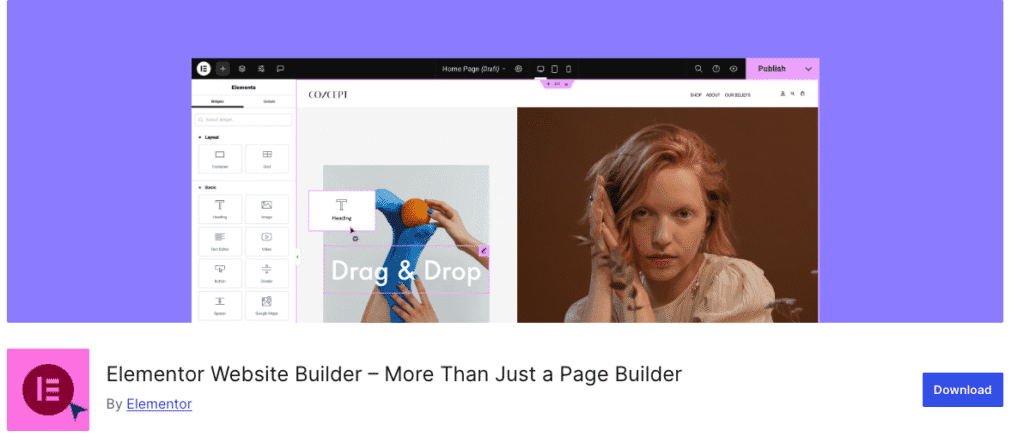
Elementor Free vs Pro comparison is really about basics versus deep customization. Free covers the essentials for building clean, functional pages at no cost. It includes core widgets and a set of templates that help simple sites go live fast. Pro adds flexible control for custom headers and footers, dynamic content from custom fields, and tight WooCommerce support.
The Free package includes these tools:
- Headings for titles and subtitles
- Text blocks for copy
- Images and Image Gallery for visuals
- Buttons that drive clicks
- Video embeds
- Spacers and Dividers to organize layouts
- Icons, Tabs, and Accordion for structured info
Pro adds more with features like:
- Theme Builder to design headers, footers, single posts, and archives across the site.
- Dynamic Content linking to ACF, Meta Box, or Toolset so pages pull field data automatically.
- Advanced widgets such as Forms for lead capture, Slides for hero sections, Loop Grid and Posts for dynamic listings, Nav Menu for site navigation, Price Table/List for pricing blocks, Call to Action, Media Carousel, and Lottie animations.
- Popup Builder for targeted popups on load, scroll, or exit intent with device and page rules, plus form capture inside the popup.
- WooCommerce Builder to customize product, cart, and checkout pages with product-focused widgets for stores.
Pro also adds Role Manager to control who edits in Elementor and custom CSS per widget for precise styling without editing theme files.
Free doesn’t include theme part design or built-in form submission storage in Elementor forms, which limits lead generation workflows.
Founders who would rather not manage that upgrade path sometimes begin from a theme pack instead, which we look at in our SuperbThemes review.
Elementor Pro pricing and features
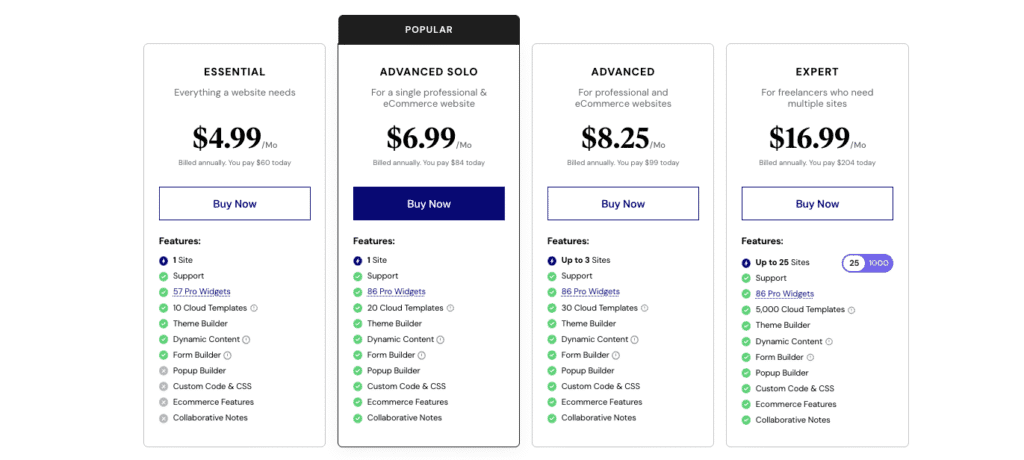
Elementor Pro pricing and features are sold as yearly plans. Pricing scales with how many sites need coverage and the widget depth required. Each tier includes core tools like Theme Builder and Form Builder, plus extras such as Popup Builder, Dynamic Content, and support. Higher tiers add all Pro widgets and broader site licensing for professionals with client work.
- Essential: $60/year for 1 site. Includes 57 Pro widgets, Theme Builder, Dynamic Content, Form Builder, Popup Builder, support, and a 30-day money-back guarantee.
- Advanced Solo: $84/year for 1 site with the full set of 86 Pro widgets. Suits users who want every widget without managing more than one site.
- Advanced: $99/year for up to 3 sites with the same features as Advanced Solo. Fits freelancers or side projects that need a few installs.
- Expert: $204/year for up to 25 sites. Aimed at agencies or freelancers covering many client websites.
For a single website that needs Forms and Theme Builder, the Essential plan offers strong value. If every widget matters or multiple domains are in play, Advanced Solo or Advanced makes sense. Agencies with many installs will get the most from Expert.
All plans include updates and support while the license stays active. When a license expires, existing designs stay live, but updates and official support pause until renewal.
Elementor discounts and what they actually save you
Official Elementor discounts run roughly 10% to 30%, and the deepest cuts land around Black Friday and Cyber Monday. Some are applied automatically at checkout with no code to enter, so the thing to look for is a banner confirming the lower price rather than a string to paste. Subscribers to Elementor’s newsletter sometimes get early access links with the reduction already applied.
The saving almost always covers the first billing cycle only. Renewals return to standard rates unless Elementor states otherwise at checkout, so a strong first-year deal is exactly that and no more. Discounts also come off the subtotal, before VAT or GST is added.
Elementor Pro and Elementor Hosting are separate products, and their discounts do not cross over. A Hosting code will not apply to a standalone Pro licence, and putting both in one cart usually makes the coupon fail outright. Hosting promotions run deeper, often 20% to 40% off the first year, but they tie the site to Elementor’s infrastructure — a cheap host paired with a standalone Pro licence can still win on yearly spend.
Worth checking before buying:
- Annual billing unlocks the advertised deals. Month-to-month rarely sees them.
- Introductory pricing and coupon codes rarely stack — checkout applies one or the other, whichever is larger.
- Add-on costs erode the discount: sites beyond the plan limit, domain email, and bandwidth or visitor overages.
- Generic codes from deal sites, the WELCOME10 and NEWUSER20 sort, do not apply at Elementor’s checkout.
- There is no Elementor lifetime deal. Listings promising “lifetime 75% off” trace back to gray-market resellers and risk both a terms violation and no support later.
Elementor page builder pros and cons
Visual editing with inline text makes Elementor feel natural for beginners. No jumping between preview and editor. Right‑click menus speed up repetitive tweaks, and copy/paste styles move design choices across elements fast. The Navigator keeps complex pages organized, so people don’t get lost in layers of sections and widgets.
A large template and block library helps launch a site fast. Full site kits remove the need to start from scratch. Global colors and fonts keep branding consistent without hunting for every element.
Pro adds a strong Form widget with email alerts, webhooks, and integrations like Mailchimp and ActiveCampaign. Fewer extra plugins are needed to capture leads.
There are trade‑offs to weigh:
- Heavy use of widgets and effects increases DOM size and extra CSS, which slows pages without caching or optimization.
- Leaving the tool later risks layout breakage. Shortcodes disappear, leftover CSS classes stay, and templates often need rebuilding.
- Advanced controls overwhelm some beginners. A lightweight theme and minimal plugins reduce confusion early on.
Beginners will find plenty to like. Keep the setup simple at first, then explore deeper customization. This sums up the Elementor page builder pros and cons in a practical way.
Does Elementor slow down your WordPress site?
Testing if Elementor slows down a WordPress site works best on a clean setup. Use a fresh WordPress install on PHP 8.2 or newer with a lightweight theme like Astra or Hello. Keep only Elementor active. Build two matching pages, one with Gutenberg blocks and one with Elementor, so the comparison stays fair.
Measure real speed signals, not guesses.
- Largest Contentful Paint (LCP): when the main content shows up
- Total Blocking Time (TBT): time scripts block clicks and scrolling
- Cumulative Layout Shift (CLS): layout jumps during load
- Total page weight and request count, checked in PageSpeed Insights and WebPageTest
Recent Elementor releases put more attention on performance. An optimized DOM output switch trims excess markup. Smarter asset loading brings in only the widgets used on the page. A move from the old section and column structure to containers reduces overhead and speeds up rendering.
Expect roughly 10 – 25% more page weight than Gutenberg for the same layout with no tuning. Add caching and compress images, and the gap often drops under 10%.
Practical tweaks that help Elementor feel fast:
- Enable a caching tool like LiteSpeed Cache or Cloudflare APO
- Serve images as WebP or AVIF instead of large JPEG or PNG files
- Keep custom fonts to a minimum since each one adds requests and blocking CSS
- Skip heavy third‑party add‑ons that load lots of scripts and styles
Hosting strength matters a lot. Low-cost shared plans often hurt time to first byte and make any builder feel slow. A better host can deliver a bigger speed win than switching builders.
So, does Elementor slow down your WordPress site? With no optimizations, it adds some weight compared to Gutenberg. With caching, image compression, lean fonts, and solid hosting, the difference shrinks and the site still loads fast.

How Elementor compares with Divi, Beaver Builder and Gutenberg
Choosing a site builder usually comes down to design control, reliability, speed, and how simple it feels to work in. Elementor competes with Divi, Beaver Builder, and the WordPress Site Editor (Gutenberg). Each one favors a different priority, so the right pick depends on the project.
Divi attracts buyers who want a one-time payment. The lifetime license is a strong draw for long-term use without yearly renewals. Its large template library helps teams spin up layouts fast and try new looks. The tradeoff is heavier default CSS and JavaScript, which slows pages unless optimized. Divi also ships with built-in A/B testing. It doesn’t use WordPress’s native sidebar interface the way Elementor does, so the editing flow feels different.
Beaver Builder earns trust with stable updates and clean code. Agencies like that predictability for client work and handoffs. It keeps the core set of modules modest, with Beaver Themer available as an add-on for theme-level control. The smaller ecosystem reduces bloat and surprises, but it narrows creative options unless more extensions are purchased.

Gutenberg, the core WordPress Site Editor, is free and fast by default since it lives inside WordPress. It offers a lean baseline and fewer effects out of the box. Full-site editing keeps improving, yet it still has fewer widgets and visual flourishes than dedicated builders. The editing model – Patterns, blocks, and theme.json – Takes time to learn.
Switching from Elementor isn’t effortless. Designs don’t translate one-to-one, so pages need to be rebuilt. A simple five-page brochure site often takes 4 to 12 hours to recreate, depending on complexity and familiarity with the new tool.
Elementor’s ecosystem is a major advantage. Add-ons like Crocoblock, PowerPack, and Essential Addons plug gaps and add niche features. Loading too many extensions invites version conflicts and slower pages, so careful curation matters.
Practical fit looks like this: Divi suits buyers who want lifetime access and a deep template library. Beaver Builder favors agencies that value stable code and smooth client handoffs despite fewer built-ins. Gutenberg appeals to teams chasing speed and a minimal stack and willing to learn its block-first approach. Elementor serves designers who want strong visual control and a broad feature set, backed by a huge catalog of third-party integrations.
Is Elementor worth it for WordPress beginners?
Most WordPress beginners find Elementor worth it when they want a good-looking site without touching code. It shines for projects that need forms, popups, or custom WooCommerce layouts, which get much stronger with Elementor Pro. If top priorities are speed, low bloat, and staying close to the native editor, Gutenberg or Beaver Builder deserve a look instead.
Ready to try Elementor? Pair it with a lightweight theme like Hello or Astra and pick the Essential Pro plan. Use a caching plugin, set global styles early, and stick to system fonts or a small set of Google Fonts. Start with templates to move fast. Learn Global Styles and Containers next, then take on Theme Builder work. Avoid piling on add-ons at the start, they add complexity and slow things down.
A quick test helps answer the key question: Is Elementor worth it for WordPress beginners on a specific host and setup? Build one landing page in Gutenberg and one in Elementor. Compare LCP and see which workflow feels smoother.
- Use this starter stack: Hello or Astra, Elementor Pro Essential, a caching plugin, limited fonts, and global styles.
- Grow skills in order: templates, then Global Styles and Containers, then Theme Builder.
- Build a sample landing page in both Gutenberg and Elementor, compare speed and workflow.
- Use Elementor Pro’s 30-day money-back window. Run a focused 7-day trial to measure build time, speed, and fit.
A short, risk-free trial shows how the tool feels on real work. That experience makes the decision simple.

Leave a Reply